COA - Chart of Accounts
When you navigate to Expenses → COA , you will see a list of all Chart of Accounts that are currently available for your organization.
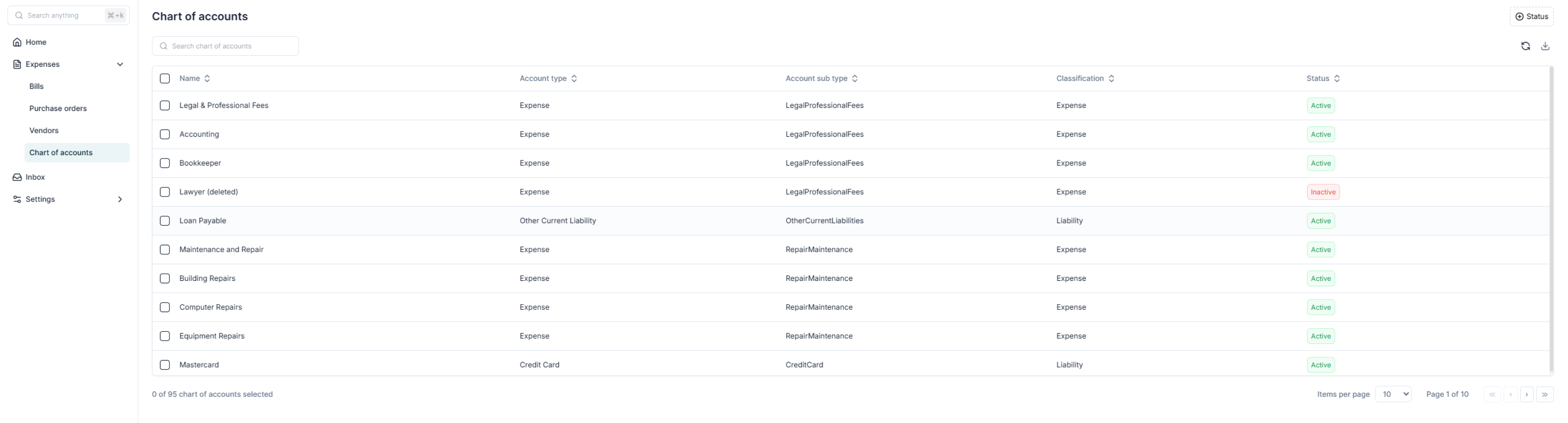
Each row represents a COA record
Syncing COA with QuickBooks
The COA page features a Sync Icon on the top right corner of the page.
- Purpose
- Clicking the Sync icon fetches the latest Chart of Accounts data from QuickBooks.
- Use Cases
- When new accounts are created in QuickBooks and need to be reflected in Rever.
- After renaming or reclassifying accounts in QuickBooks.
- To refresh status (active/inactive) if any changes were made externally.
- Process
- Click on the Sync Icon.
- A progress bar or loading indicator will appear while the system fetches data.
- Once complete, the list will refresh with updated COA information.
Export COA
The page also provides an Import Icon (CSV Download option) to export COA data for
internal reference or offline review.
To download the full COA list from Rever in CSV format.
Process
- Select the required COA records (or leave all selected to download full list).
- Click the Export Icon.
- A CSV file is generated with the following fields:
- Name
- Account Type
- Account Sub-Type
- Classification
- Status
- Save the file locally for review, audit, or sharing with other teams.
tip
- Regular Sync: Run the sync process at least once a week or after major updates in QuickBooks to ensure data accuracy.
- Review Status: Periodically check for inactive accounts and avoid coding new transactions to them.
- CSV Export for Audits: Use the Import/Export feature to maintain an offline record of COA for internal audits and compliance checks.