Invite Users & Team Setup
The Invite Users & Team Setup module enables administrators to create teams, invite users, assign roles, and configure access. It ensures proper organization, controlled access, and secure usage of the system.
Accessing Teams & User Management
- Navigate to Teams from the left navigation panel.
- Access the Roles and Permissions tab for team management and user configuration.
Team Creation
Teams help organize users and manage access effectively based on departments or functions.
Create teams based on departments or workflows
Steps to Create a Team
- Go to Teams
- Open the Roles and Permissions tab
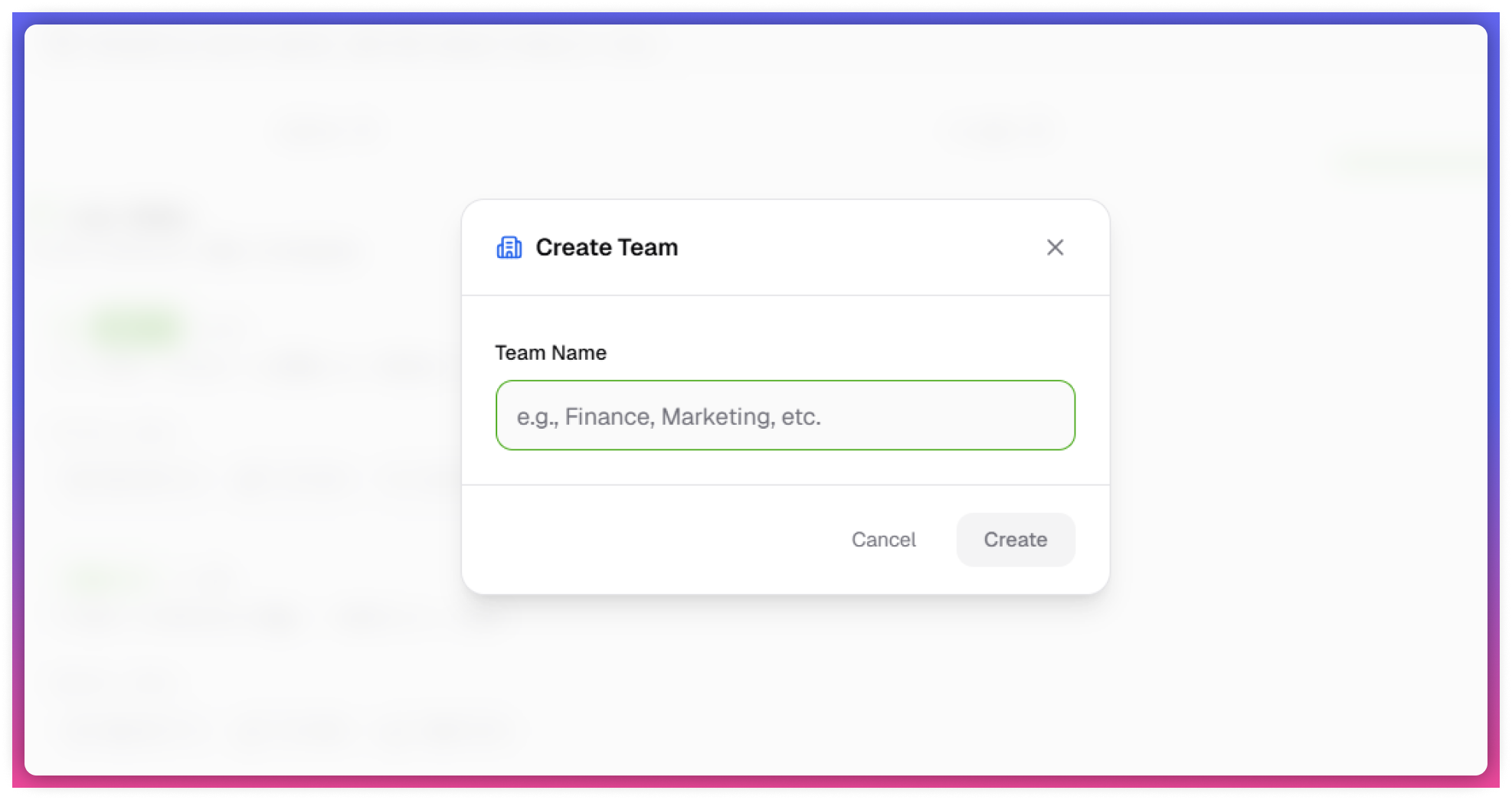
- Click on Create Team
- Enter the Team Name (e.g., Finance, AP Team)
- Click Save
Team creation must be completed before assigning users to a team.
Inviting Users
Steps to Invite a User
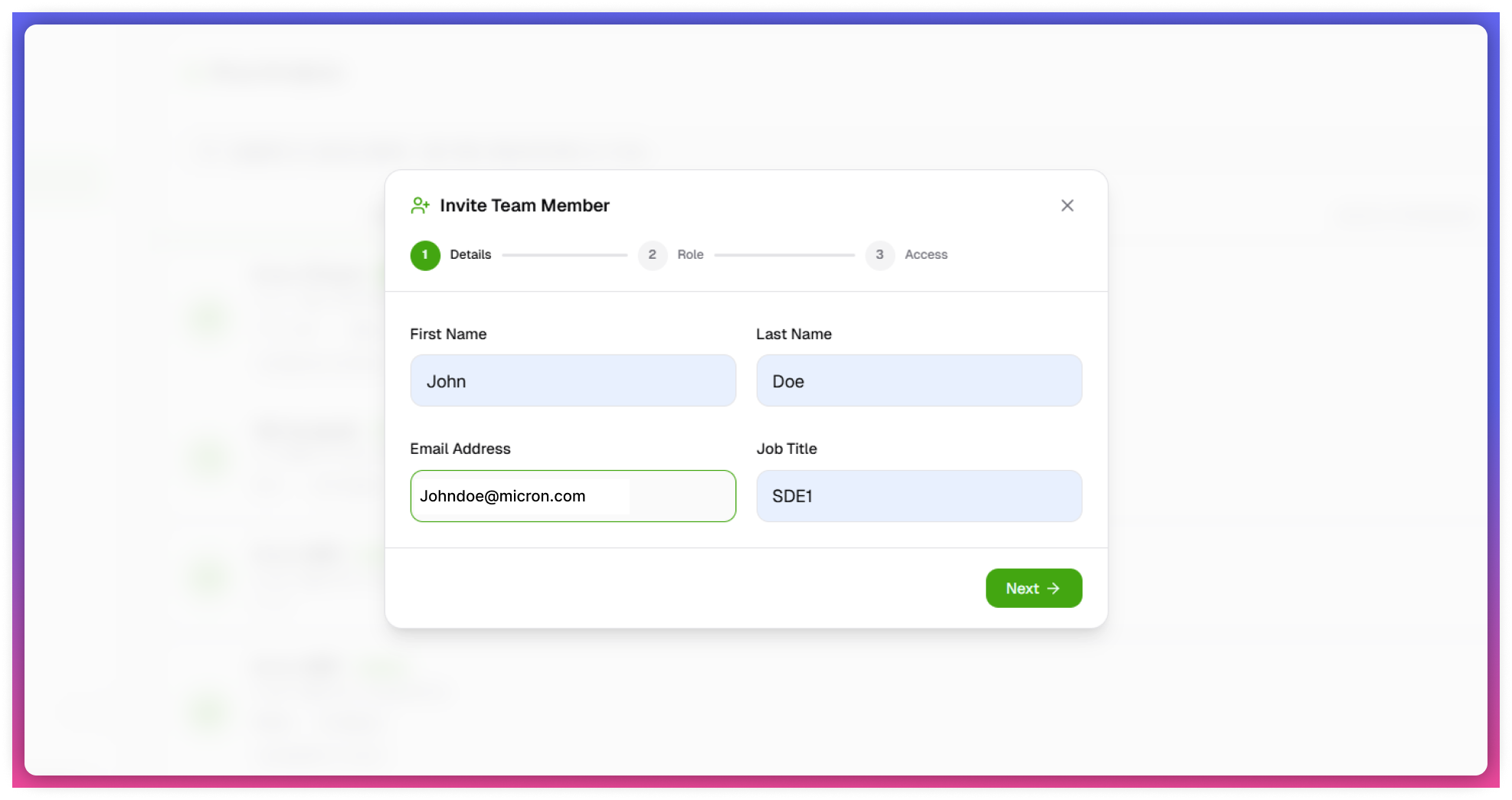
- Click on the Invite button on the Teams page
- Enter the following details:
- First Name
- Last Name
- Email ID
- Job Title
- Click Next
Invitations expire after 24 hours
Assigning a user to a team is optional during invitation.
Role Assignment
Purpose
Defines the level of access and actions a user can perform.
Available Roles
- Admin
- Full access to:
- Configurations
- Integrations
- User management
- Full access to:
- Member
- Limited access based on assigned permissions
Roles directly impact system access and capabilities.
Team & Integration Assignment
Configuration Steps
After assigning the role:
- Assign the user to a Team (optional)
- Provide access to relevant Integration connections
Important Behavior
- Integration access should be assigned carefully to ensure data security
- Users (Members) must provide their own credentials after connection to activate access
User Status & Access Management
User Status
- Active → Users who have accepted the invitation
- Invited → Users who have not yet accepted
Invitations remain active for 24 hours, after which they expire.
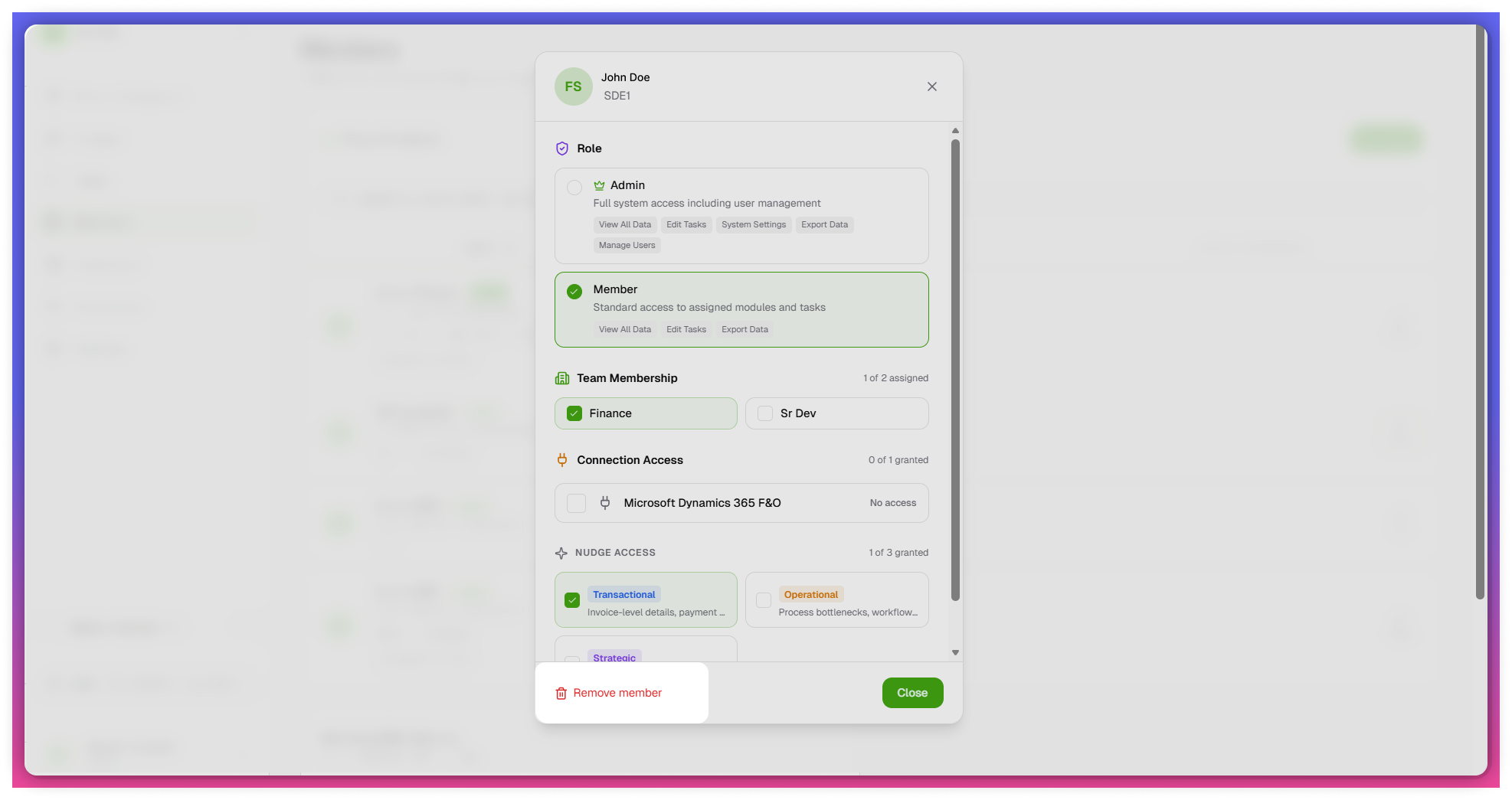
Modify User Access
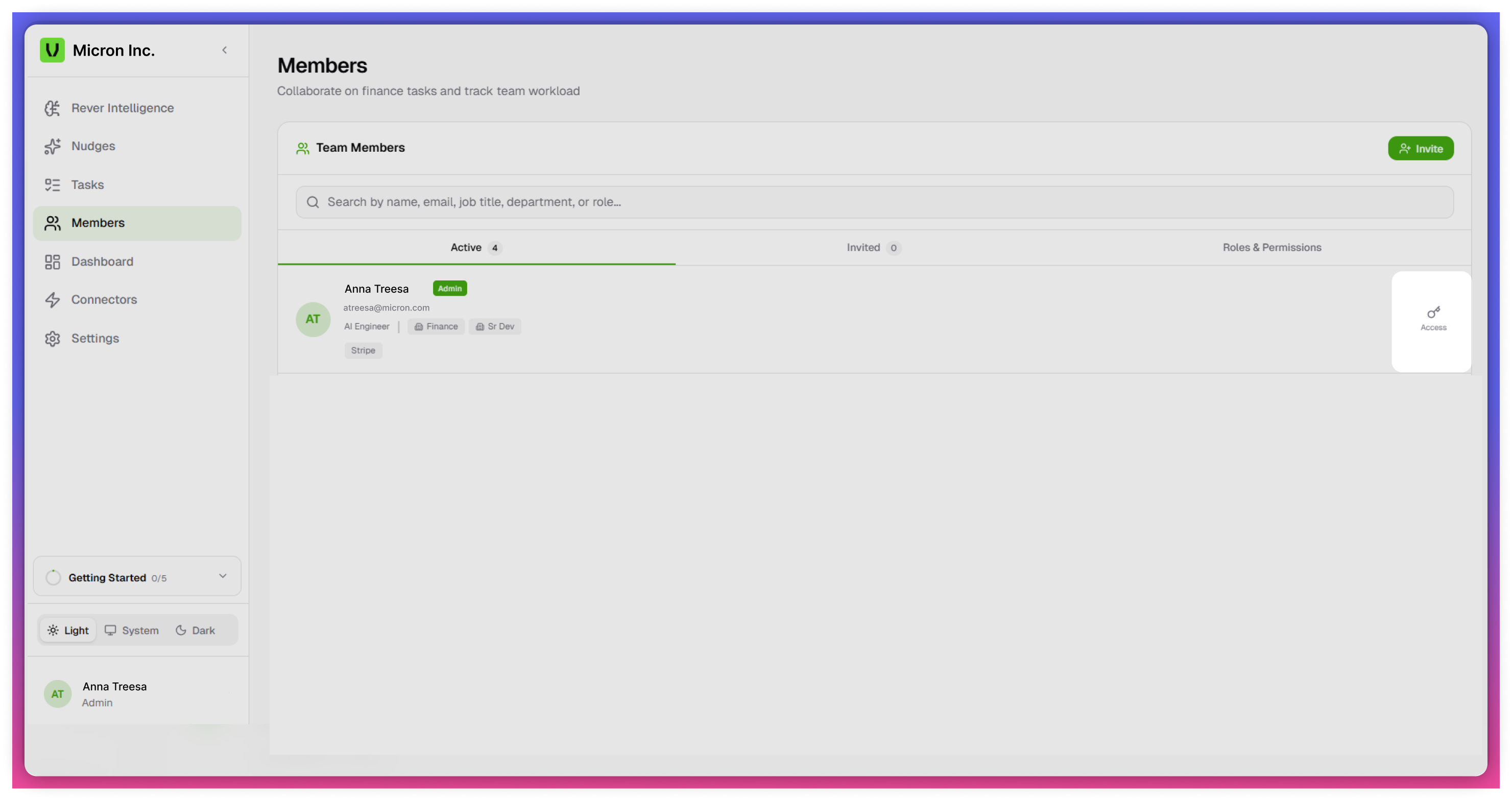
- Click on the Access (key icon) next to the user
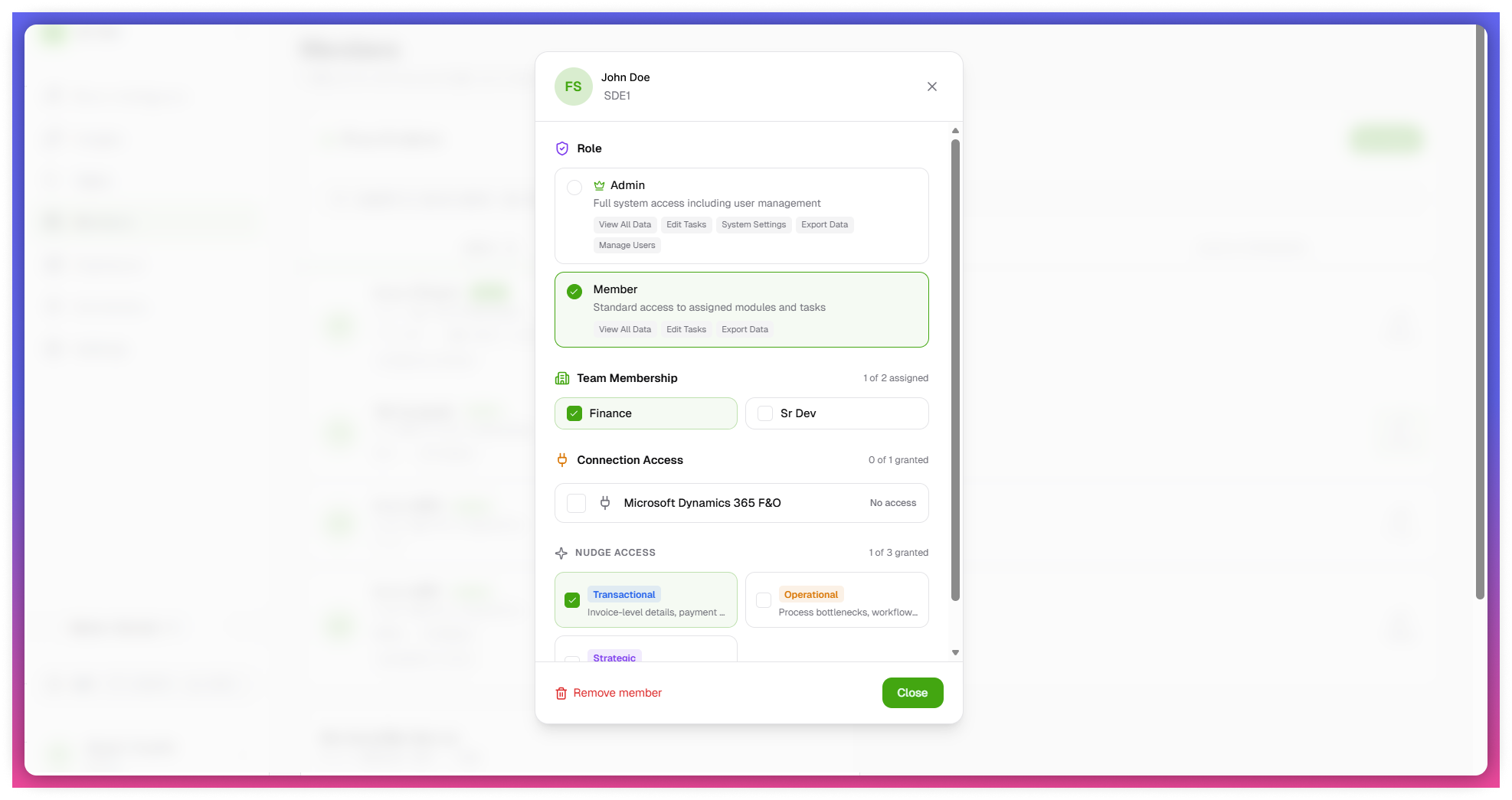
- Update the following:
- Role (Admin / Member)
- Team assignment
- Integration access
User Removal
Steps to Remove a User
- Click on the Access (key icon) next to the user
- Select Remove Member
Behavior
- User access is revoked immediately
- All associated permissions are removed
Perform this action carefully to avoid disruption to ongoing tasks.
Roles & Permissions - Team Management
Features
- View list of all created teams
- Edit team names as required
- Delete teams (only if no users are assigned)
Important Notes
- A team cannot be deleted if users are assigned to it
- When a team is deleted:
- Users remain in the system
- Only team association is removed
- Only Admin users can manage teams and user access
- User access and visibility depend on assigned roles and Integration permissions